
Amazon FBA
Seller Central
Amazon Sellers
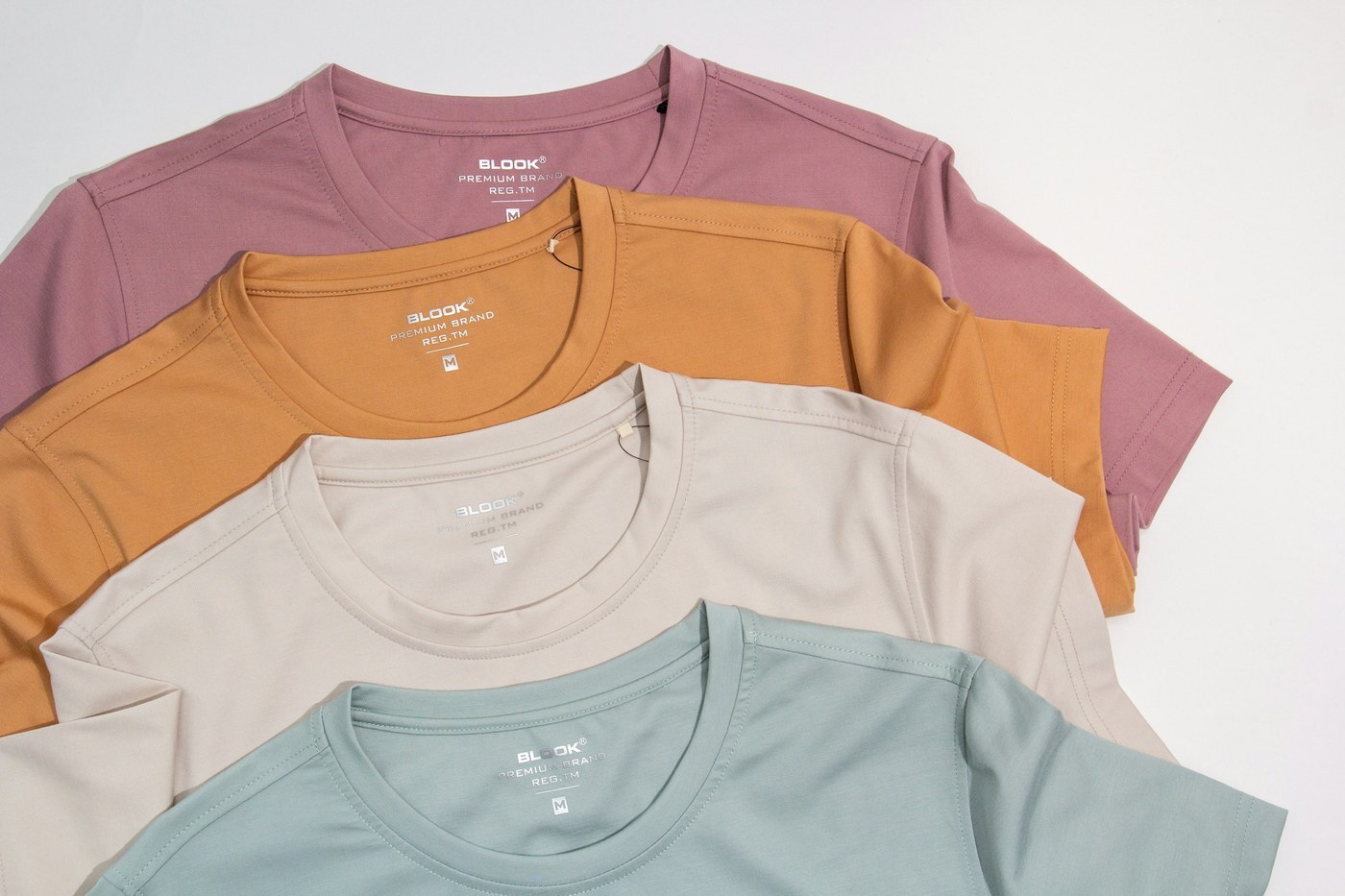

If you sell a product in more than one color, size, or pack count, you will eventually have to decide how those options live on Amazon: as one detail page with a drop-down menu, or as separate listings. That choice is called a variation family, or parent-child listing, and in 2026 it matters more than it used to.
Two changes this year shifted the ground. First, Amazon stopped sharing reviews across every child in a family; reviews now carry over only between variations with minor, non-functional differences. Second, the old Variation Wizard was retired at the end of August, and adding variations now runs through the Add Products page. This guide explains how parent-child listings work, what changed, which products belong together, what Amazon prohibits, and how to audit the families you already have, using Amazon's own guidance on creating product variations.
Amazon describes a variation family as a set of products that are related to each other by color, size, or another attribute, shown on a single product detail page so shoppers can pick the option they want. Every family has three parts:
The theme is not a free-text field. Each product type has a list of approved themes, and Amazon's category style guides say you should not choose a theme outside that list. A clothing product type usually allows Size-Color; a supplement might allow Flavor or Size; some categories allow far fewer options. If the theme you want is not offered for your product type, that is usually a sign the products should be separate listings.
On its Sell on Amazon blog, Amazon lists several benefits: shoppers find every option on one page, lower-selling options get more exposure next to popular ones, and sales of any child "may" support the family's ranking in search. Notice the cautious wording. A variation family is a way to organize a catalog for shoppers, not a ranking trick, and Amazon actively polices families that group products only to pool reviews or sales history.
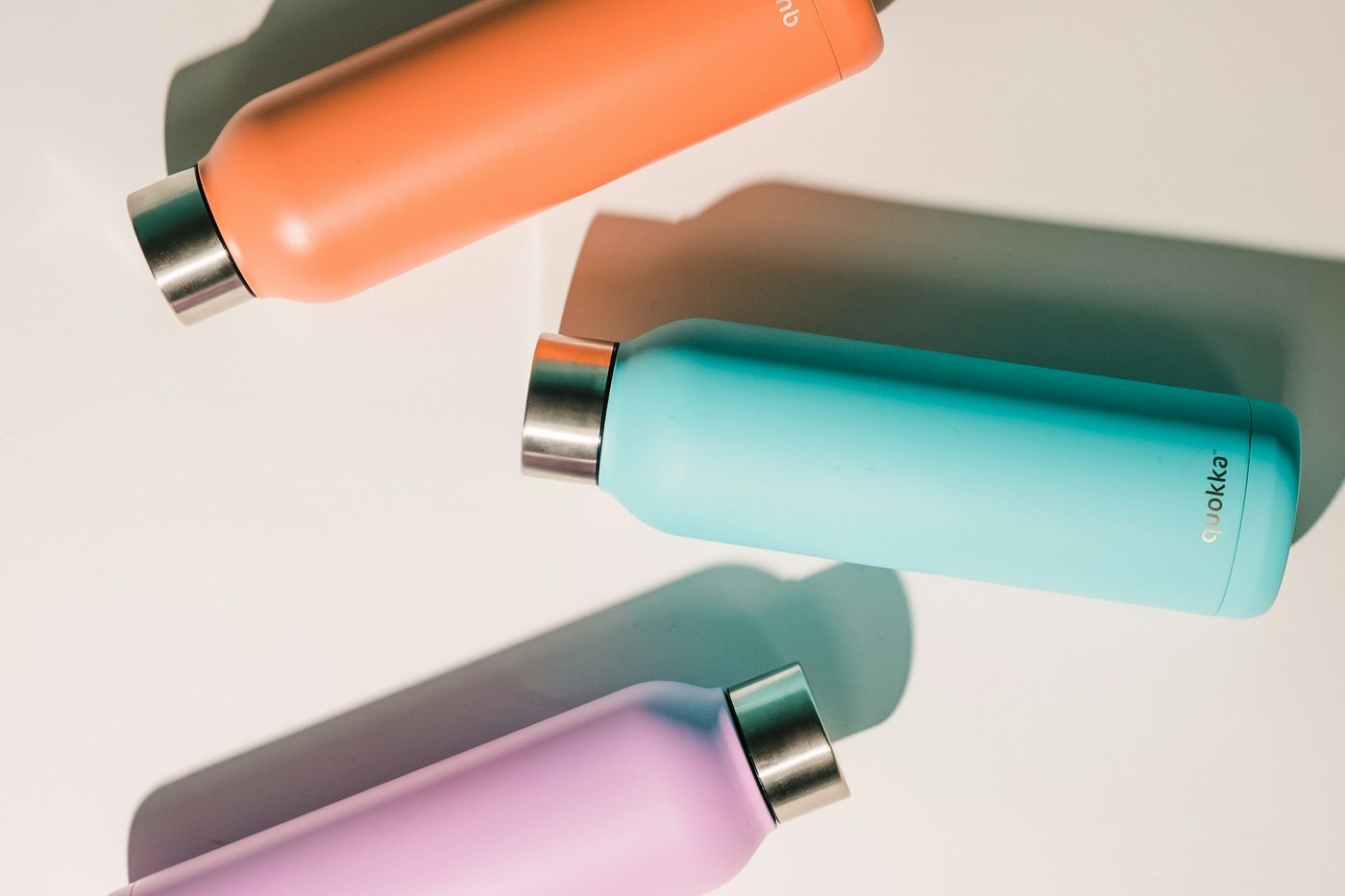
According to the Home, Garden & Pets style guide, you should fully describe each child so it can be included in browse and search, add the variation value to the child's title, and build the relationship with the SKU and parent SKU fields. The same guide says not to include a price or quantity on the parent and not to put a variation value in the parent title. In practice that means a parent title like "Brand Insulated Water Bottle, Stainless Steel" and child titles that add "20 oz, Coral" or "32 oz, Turquoise." If you are reworking titles anyway, our guide to Amazon's 75-character title limit and item highlights covers how to keep them short and clear.
On January 7, 2026, Amazon announced in its Seller Forums announcement on review sharing that, starting February 12, 2026, reviews would only be shared between variations with minor differences that do not affect functionality. Amazon rolled the change out gradually by product category between February 12 and May 31, 2026, and said sellers would get an email 30 days before their products were affected.
Amazon listed the variation types that keep sharing reviews:
Variations with significant differences, such as different flavors, formulations, or specifications, no longer show each other's reviews. That can lower the star rating and review count a shopper sees on some children. Reviews are not deleted; they stay with the child ASIN they were written for.
In a follow-up Seller Forums post, Amazon added several details that are easy to miss:
Amazon also said that if you correct your variation themes after the change, reviews will be re-shared for eligible products. That is a reason to fix mislabeled themes (for example, color differences entered as a quantity theme), not a way to bring back sharing for products that really are different. If you have not used Seller Assistant yet, our walkthrough of Amazon Seller Assistant and its AI workflows shows where to find it.
On July 21, 2026, Amazon announced a new way to add products to a variation family directly from the Add Products page, and said the Variation Wizard would be retired by the end of August 2026, as reported by EcomCrew and My Amazon Guy. In the new flow you search for the product, open its product information page, and choose to view its variations (some accounts see this labeled as product options). From there you can add a brand-new child, connect an existing standalone SKU to the family, or add your offer to a child that already exists.
Amazon then generates a pre-filled spreadsheet with the family's current structure, attributes, and child details. You complete only the required fields for the products you are adding, upload it, and check the processing report. Because the existing data is already filled in, there is less room for the mismatched parentage, parent SKU, or theme values that often caused upload errors in hand-built templates.
A clean variation family starts with a clear product plan. Bubba Academy's step-by-step program shows sellers how to choose products, decide which options to offer, and build listings that follow Amazon's catalog rules.
Amazon's guidance comes down to one test: the products should be fundamentally the same item, differing only by the approved variation attribute. Amazon's seller blog says parent and child products should be the same type, brand, and style, and that functionally different products should be listed on separate detail pages. A quick decision check before you group anything:
Grouping makes sense when options are interchangeable apart from the attribute, and shoppers benefit from comparing them side by side: sizes of the same storage bin, colors of the same phone case, pack counts of the same cleaning cloth. Separate listings often make more sense when each option serves a different buyer or use case, when options have very different price points and reviews, or when an option is really a different product that would compete for its own keywords. Neither choice is automatically better; the goal is a page that answers the shopper's question quickly and honestly.
Amazon's ASIN creation policy lists misuses of variations that can lead to your ASIN creation or selling privileges being temporarily or permanently removed. The prohibited practices include:
Amazon's style guides add that it can remove variation families, or children added to them, that do not follow these standards. The most common real-world problem is "merging" an unrelated new product into an established family to borrow its reviews. Since February 2026, that tactic is even less likely to help, because significantly different children no longer display shared reviews, and it carries account risk. If you are working on review volume, our guide to getting your first Amazon reviews the legitimate way covers the methods Amazon allows.
One related exception: Amazon's own virtual multipack program, where Amazon creates multipack offers from your single units, has its own rules about how those offers appear in a family. We covered that pilot in our article on Amazon virtual multipacks.
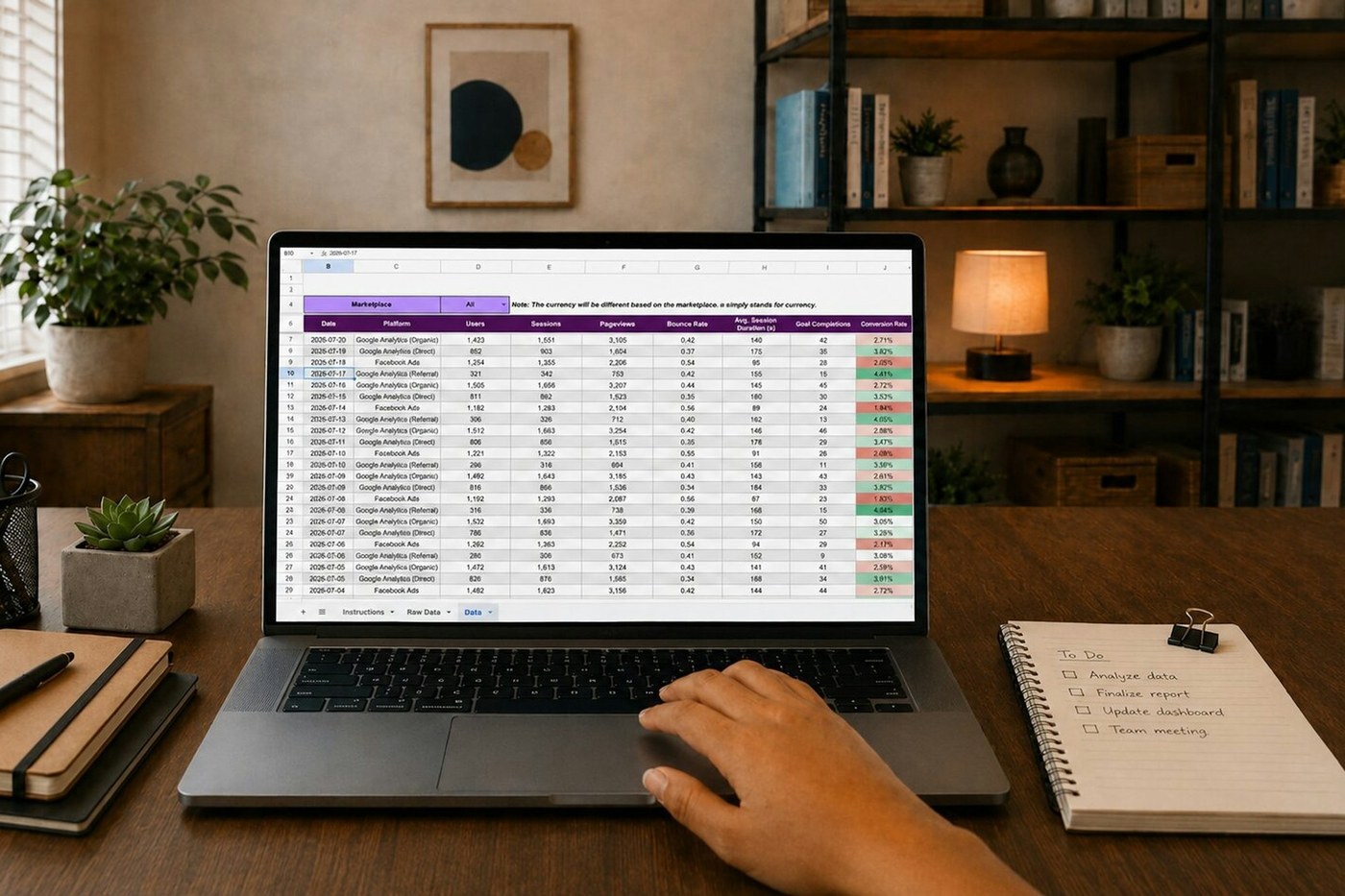
The exact screens differ by account and category, but the flow Amazon and the trade press describe looks like this.
For larger catalogs, Amazon recommends the spreadsheet route: download a template from the Spreadsheet tab, fill in the parent row and the child rows, and upload it. My Amazon Guy's summary of Amazon's documentation says the blank form suits a single family with up to 250 children, while the spreadsheet is recommended for multiple families or bigger catalogs.
Picking the wrong option in step 2 is a common way to create duplicate listings, so read it twice. EcomCrew notes that variation updates still take about 24 to 48 hours to process after a successful upload, so do not make catalog changes at the last minute before a promotion.
Amazon's seller blog suggests keeping variations simple and warns that combining many colors, sizes, and value-pack types on one page can confuse shoppers. A few planning habits help:
Sponsored Products ads advertise individual ASINs, so decide which children to advertise rather than assuming the whole family benefits equally. Watch performance per child, because a family-level view can hide one option that drives returns or bad reviews. If one child consistently disappoints buyers in a way the others do not, that is useful product feedback, not just a listing problem.
If you created variation families before 2026, run through this list once:
Document what you change and when. If star ratings or review counts on a child shift afterward, you will know whether it came from your edit or from Amazon's review-sharing rules.
Pick your best-selling family and run the 20-minute audit above this week. Fix any mislabeled themes, move anything that is really a different product to its own listing, and write down the date of every change. If you want a structured way to plan product lines, listings, and brand assets, explore Bubba Academy, its brand strategy and positioning training, and the Amazon training course.
Bubba Academy trains sellers on product research, sourcing, listings, catalog structure, FBA inventory, pricing, and ads, so you can grow a product line that stays organized and in good standing.
Join Bubba Academy Today →It is a variation family: a non-buyable parent that groups buyable child products differing by an approved attribute such as size, color, or pack count, all shown on one detail page.
No. Since Amazon's rollout between February 12 and May 31, 2026, reviews are shared only between minor variations such as color, pattern, function-preserving size, pack quantity, secondary scent, and model fitment. Variations with significant differences, like flavor or formulation, show only their own reviews.
Amazon's announcement says reviews no longer appear on variations with significant differences; third-party summaries describe them as staying with the child ASIN where they were written rather than being removed.
No. Amazon said the Variation Wizard would be retired by the end of August 2026. Adding variations now runs through the Add Products page, which offers a pre-filled spreadsheet of the existing family.
Amazon's ASIN creation policy says multipack children must be created by the manufacturer. A seller-made multipack has to match an identical existing multipack page or get its own detail page with its own UPC.